Clean Word Formatting for School Websites
Paste a letter, newsletter or policy straight out of Microsoft Word and get tidy content your website will not mangle. Free, no sign-up, and nothing you paste ever leaves your browser.
Paste from Word
Copy straight out of Word, Google Docs or an email and paste it below. Use the box, not the code view, so the formatting comes across and can be cleaned. Nothing is uploaded.
What was stripped out
Your clean content
Why pasting from a Word document breaks your page
Copying out of a word processor does not copy words. It copies the words plus a great deal of private markup describing how they looked on an A4 page. Your website honours instructions written for paper, and out comes the wrong font and a page that will not reflow on a phone.
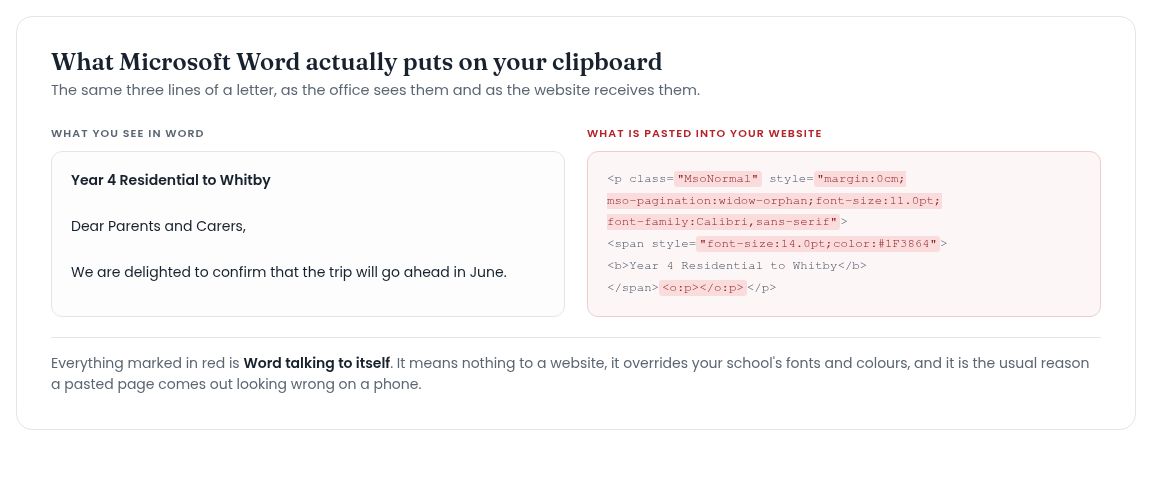
What Microsoft Word puts on the clipboard
Alongside your text sit MsoNormal classes, mso- style rules and o:p tags. They exist so Word can paste back into Word without losing anything. On the web they mean nothing.
The text formatting that travels with it
Then the inline styles: font settings naming Calibri, a font size in points, a colour chosen for white paper. They override your school’s own design, which is why one pasted page looks nothing like the page beside it.
What this text cleaner removes
The tool above keeps your structure and discards what only made sense inside a document.
Inline styles, spans and font size
Every style attribute goes, with the span and font tags around your words. The text inside survives and your website’s own styles apply again.
Empty lines, excessive spaces and tabs
Documents are full of empty paragraphs used as spacing, multiple spaces used as indentation and tabs used to line things up. None of it behaves on a web page as it did on paper. Empty lines go and runs of whitespace collapse to a single space.
Smart quotes and other special characters
This one surprises people. Word swaps straight quotes for curly smart quotes as you type, turns two hyphens into em dashes and three full stops into one ellipsis. When the page encoding does not match, those non ascii characters land on your website as strange symbols.
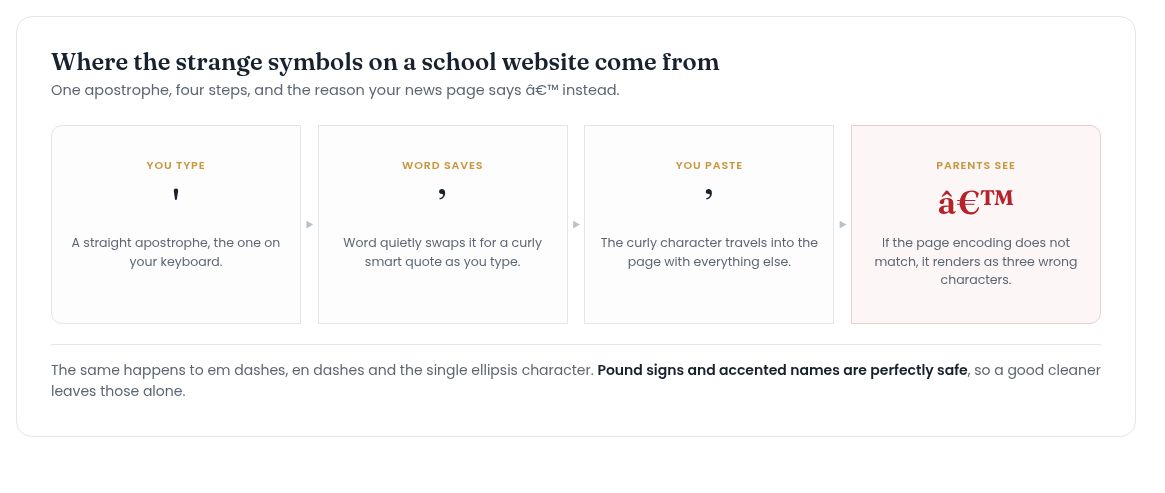
Untick the box if you would rather keep them. Pound signs and accented names are never touched, because those characters are meant to be there.
Images and links pointing at your own computer
Images pasted from Word point at a file on the machine that wrote the letter, so everyone else sees a broken image. Links to a document in My Documents do the same. Both are removed and reported. Upload images through your own system instead, at the right pixel dimensions.
What it keeps
Stripping formatting is easy. Doing it without losing the meaning is the part worth getting right, so all of this survives:
- Headings, so the page can still be skimmed
- Bold and italics, as the tags a website expects
- Real lists, bulleted and numbered
- Tables, because term dates live in them
- Links to web addresses, email and telephone
- Every word you wrote
One thing changes deliberately. A top level heading in your document becomes a second level heading here, because the page title is already the first.
Word’s bullet points are not a list
The fix that matters most is the one nobody can see. Word frequently writes a bulleted list as ordinary paragraphs, each starting with a bullet symbol. On screen it looks like a list. Underneath there is none, so a parent using a screen reader is never told there is one.
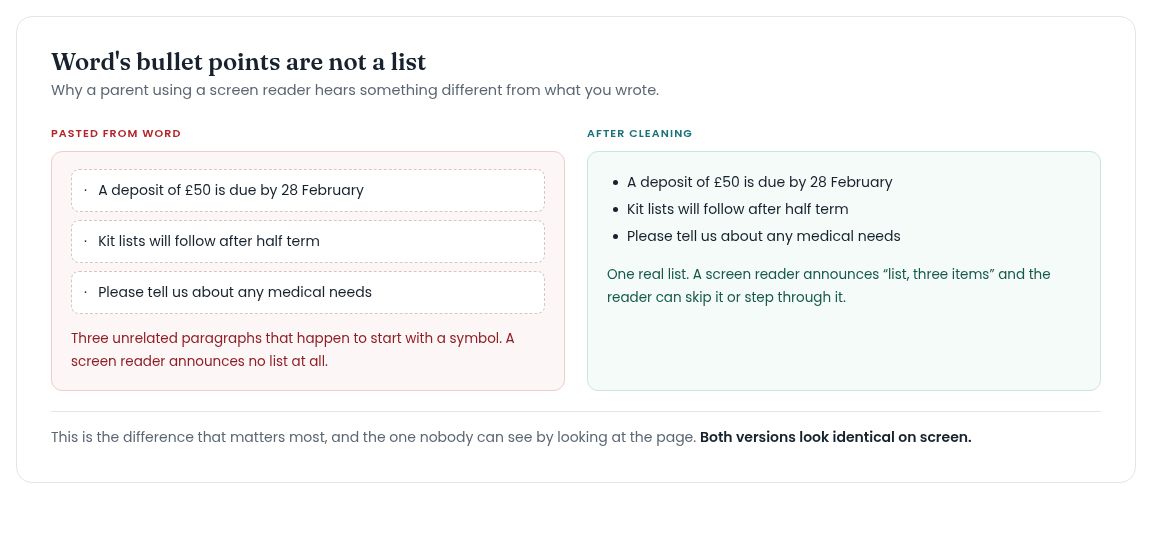
The cleaner finds those paragraphs, strips the symbol and rebuilds them as real list markup. Numbered paragraphs become a numbered list, and a genuine list is left alone.
How to clear formatting before you copy
At source, select everything in Word and use Clear All Formatting on the Home tab. Most website editors offer a paste as plain text option too. Both throw away your headings, bold and links along with the mess, and rebuilding those by hand is what this tool saves you.
Nothing you paste leaves your browser
No upload, no server, no account. School letters name children, staff and families, so a tool that sends them elsewhere to be processed is not one an office should use.
Common questions
Does it work with Google Docs and email?
Yes. Google Docs, Outlook and Apple Pages all carry their own markup into the clipboard. It is gentler than Word’s, and the same cleaning handles it.
Will it strip html tags if I paste code?
It removes any tag not on the keep list, so the box is not the place for a block of code. Paste the formatted content, not the markup.
What about duplicate lines?
Repeated empty paragraphs are removed and counted, which is usually what people mean. Identical lines of real text are left alone, because calling them a mistake is not a judgement a tool should make for you.
Can I have plain text instead?
Yes. Three views: a preview, the clean HTML, and plain text with no markup. Copy whichever your system takes.