Embed YouTube video into your Learning Wall
Embed YouTube video into your Learning Wall
YouTube for Schools is fantastic and provides a huge array of fascinating resources. Embedding video directly into your Learning Wall is straightforward and you can practice some of your coding skills while you’re doing it.
Finding the YouTube Embed Code
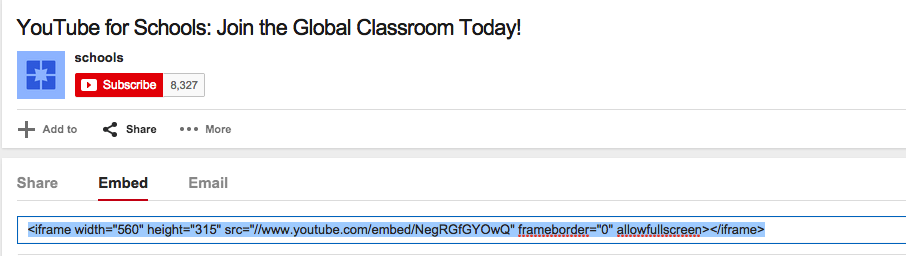
Under the video there are some share options, click Embed and you will see the embed code below.
Simply copy the code and you can now paste it into the ‘Widget Code’ box in your Learning Wall app.
To do this, go to your Learning Wall and click ‘Create App’.
In the Type dropdown list, select ‘Widget’. Paste your code here.
Customise, Test and Debug Embed Code
If you save the App straight after you have pasted the embed code into your Wall it won’t look quite right. There are a few things we need to do to make the Widget work perfectly.
Size
To make the video fit perfectly into the box, change the width and height attributes.
In the embed code find the ‘width’ and ‘height’ attributes.
Change both of these to ‘310’ – that is the size of the box in pixels.
Show Related Content
To stop YouTube showing suggested related videos once yours has finished playing you need to edit the src attribute within the embed code.
In the embed code add ?rel=0 to the end of the url.
eg: src=”//www.youtube.com/embed/NegRGfGYOwQ?rel=0”
Show Player Controls
To hide all the player controls from the video you need to add a separate extension to the src url.
In the embed code add ?controls=0 to the end of the url.
eg: src=”//www.youtube.com/embed/NegRGfGYOwQ?controls=0”
Show video title and player options
To hide the video title and player options that are displayed automatically you need to add a separate extension to the src url.
In the embed code add ?showinfo=0 to the end of the url.
eg: src=”//www.youtube.com/embed/NegRGfGYOwQ?showinfo=0”
IMPORTANT NOTE
If you are adding more than one of these options into the url then you need to add & between each command otherwise it won’t work.
Eg: src=”//www.youtube.com/embed/NegRGfGYOwQ?rel=0&controls=0&showinfo=0”
Testing
Make sure that any changes you make are spelt correctly or they won’t work.
Make sure that you don’t delete any punctuation and be careful for syntax errors.

Related Posts

Ian Richardson
January 26, 2026
Most schools already have a website. Most schools also have access to analytics. Very few ..

Ian Richardson
October 14, 2025
We’re rolling out a new AI feature in our online learning platform, SchudioTV: the Schudio ..

Ian Richardson
June 15, 2025
Choosing the right school website provider is about more than just the design. It’s ..
Ian Richardson
August 13, 2024
We are thrilled to announce the launch of our newly updated School Website Software (CMS). ..

Ian Richardson
July 30, 2024
There are several features that you may not know about in the Schudio CMS. Part ..

Ian Richardson
October 20, 2023
School websites are the cornerstone of effective communication between schools, parents, students, and the broader ..